Most people asking this want to add a bird emoji, like 🐦 or 🕊️, to their Twitter/X display name. You can do that right now in a couple of taps: go to Edit profile, click into the Name field, paste or type a bird emoji alongside your name, and save. That's genuinely all there is to the most common version of this request. If you want to use the actual Twitter bird logo (the old blue bird or the X logo), that's a different situation with real legal constraints worth knowing about before you proceed.
How to Put Twitter Bird in Name: Step-by-Step Guide, Web, iOS & Android

Maya Castellanos
11 Aug 2026
What 'put the Twitter bird in your name' usually means
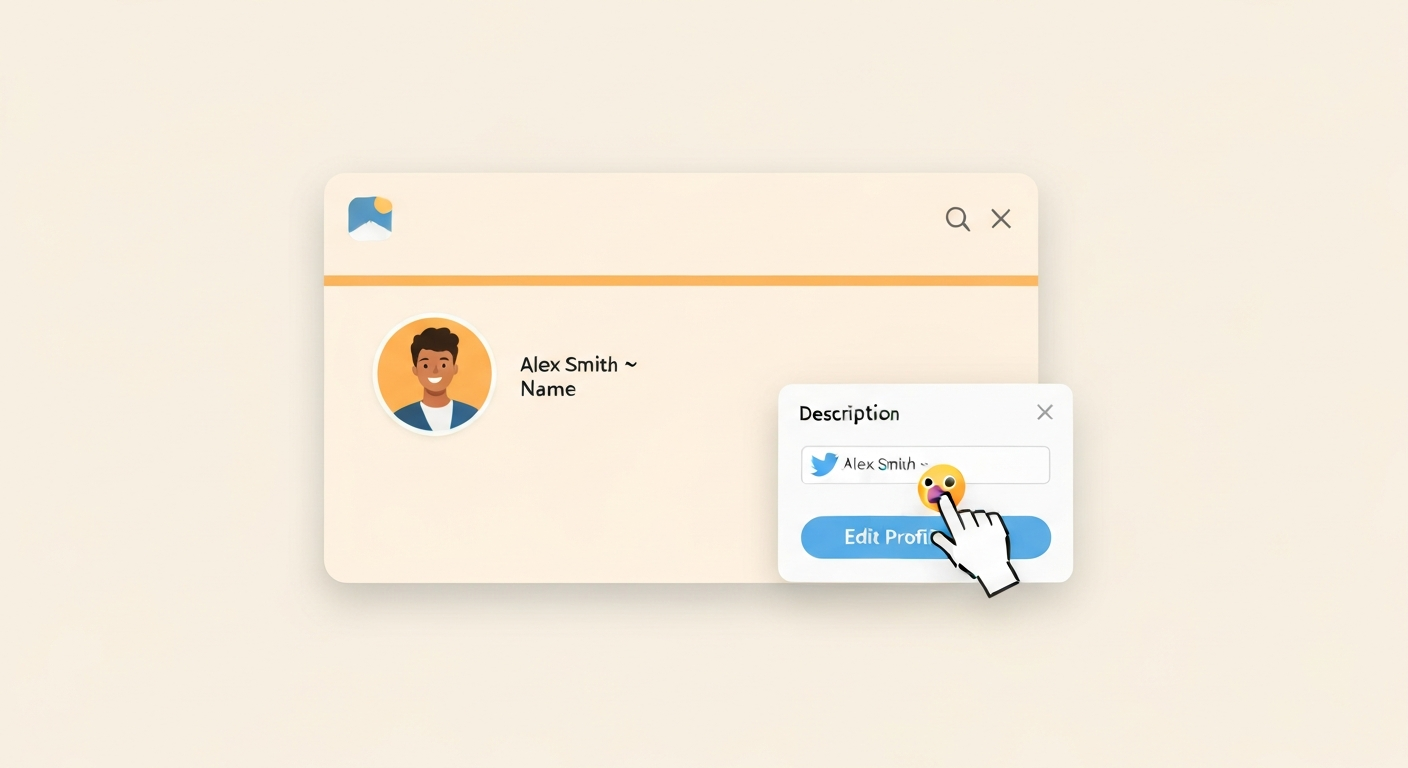
The phrase means different things to different people, and it's worth pinning down which one you're after before you start clicking around. In most cases, someone asking this question wants a decorative bird symbol next to their name on their profile, the kind of visual flourish you see on accounts that use 🐦 or 🕊️ as a kind of brand shorthand. A smaller group of people specifically want the iconic Twitter bird silhouette, the Larry the Bird logo that Twitter used from 2012 until the rebrand to X in 2023. And occasionally people are asking about creating a profile image or header that incorporates a bird graphic.
These are meaningfully different things. A bird emoji in your display name is trivially easy and completely fine. Reproducing the official Twitter or X logo in your name or profile is governed by trademark rules and X's own authenticity policy, and getting that wrong can get your account restricted. Understanding which category you're in shapes everything that follows.
Quick comparison: your three main options
Here's how the three main approaches stack up against each other in terms of ease, risk, and what they actually look like on someone's screen.
| Method | How it works | Looks like | Effort | Risk / Limitations |
|---|---|---|---|---|
| Bird emoji in display name | Type or paste a Unicode emoji (e.g. 🐦 U+1F426) into the Name field in Edit profile | Renders as a small colored emoji icon next to your name | Very easy — a few taps | Appearance varies across devices; counts toward the 50-character name limit |
| Unicode glyph / special character | Insert a non-emoji Unicode bird symbol (e.g. a stylized character from a symbol font) via copy-paste or codepoint | May render as a box or question mark on some platforms/devices | Easy to insert, but unpredictable rendering | Poor cross-platform consistency; some characters are filtered by platform updates |
| Custom bird image / profile badge | Upload a bird graphic as your profile photo or header image; cannot embed an image in the text name field itself | Full-color custom image visible on your profile card | Moderate — requires image editing or a design tool | Profile photo must be square; header is 1500×500 px recommended; no image embedding in name text |
| Official Twitter/X logo | Use the Larry the Bird silhouette or the X logo graphic in your name, bio, or images | Looks like the real brand mark | Technically easy but legally fraught | Violates X Brand Guidelines without authorization; risks account restriction or suspension for impersonation |
My recommendation for most people: go with a bird emoji in your display name. It's instant, reversible, and genuinely charming. The emoji 🐦 (Bird, U+1F426), 🕊️ (Dove, U+1F54A), or 🦉 (Owl, U+1F989) all render reliably on modern devices. See Unicode, emoji charts / animal‑bird code points (includes U+1F426, U+1F427, U+1F54A, etc.) for the official code points and names Unicode — emoji charts / animal‑bird code points (includes U+1F426, U+1F427, U+1F54A, etc.). If you care about a specific bird species, there's almost certainly an emoji for it.
Before you start: platform rules and display name vs. handle
There are two separate 'name' concepts on X, and they work completely differently. Your display name (shown as your profile 'Name' in Edit profile) is a free-text field capped at 50 characters. It accepts emoji, Unicode symbols, spaces, and most Unicode text. This is where you add a bird. Your username, the @handle that appears after the @ symbol, follows strict rules: it can only contain letters, numbers, and underscores, must be between 1 and 15 characters, and cannot contain emoji or spaces at all. The API enforces this with the pattern ^[A-Za-z0-9_]{1,15}$. So if you're hoping to be @🐦BirdLover, that's not possible, but the name displayed above your @handle on your profile card can absolutely include a bird emoji.
There are also a few policy guardrails worth knowing. X's Authenticity policy (updated April 2025) prohibits impersonation and misleading profile information. If you add a bird symbol, an official-looking logo, or name elements that make your account look like it's affiliated with X or Twitter the company, you could run into enforcement. Violations can mean required profile edits, feature restrictions, or suspension. Parody and fan accounts are allowed, but only if you include a clear PCF (Parody/Commentary/Fan) label and mark the purpose in your name or bio. On the verification side, X Premium's blue checkmark requires your account to be 'complete' and 'non-deceptive,' and frequent changes to your display name or profile photo can trigger a review or affect your verification status.
How to add a bird emoji or special character: general insertion methods
Before you open the X app, it helps to know how to actually get a bird emoji onto your clipboard or cursor. There are four reliable methods depending on your device and preference.
Emoji keyboards and system pickers
- Windows 10/11: Press Windows key + . (period) or Windows key + ; (semicolon) to open the emoji panel. Search for 'bird' to find 🐦, 🕊️, 🦉, 🐧, and others.
- macOS: Press Control + Command + Space to open the Emoji & Symbols viewer. Search 'bird' in the search bar.
- iOS: Tap the emoji key (smiley face or globe icon) on your keyboard, then search 'bird' or browse the Animals & Nature category.
- Android: Tap the emoji icon on your keyboard (location varies by keyboard app), then search 'bird' or navigate to the Animals category.
Copy-paste from a reference source
The simplest cross-device method is to copy a bird emoji from a reference page and paste it directly into the X Name field. Copy 🐦 from right here if you like. This works on every platform and guarantees you're inserting exactly the character you intend. Sites like Emojipedia also show you how each emoji renders on different platforms (Apple, Google, Samsung, the old Twitter design), which is useful if you want your name to look consistent across devices.
Unicode codepoints
If you're comfortable with character insertion by codepoint, here are the main bird-related Unicode emoji you're likely to want. On Windows, you can type a codepoint in some applications using the Alt+X method (type the hex code, then press Alt+X). On most modern apps, copy-paste is more reliable.
| Emoji | Name | Unicode Codepoint |
|---|---|---|
| 🐦 | Bird | U+1F426 |
| 🕊️ | Dove | U+1F54A |
| 🦉 | Owl | U+1F989 |
| 🐧 | Penguin | U+1F427 |
| 🐔 | Chicken | U+1F414 |
| 🦅 | Eagle | U+1F985 |
| 🦆 | Duck | U+1F986 |
| 🦜 | Parrot | U+1F99C |
| 🦢 | Swan | U+1F9A2 |
| 🦩 | Flamingo | U+1F9A9 |
A word on invisible and 'blank' characters
You may come across guides that suggest using zero-width spaces (U+200B), Hangul Fillers (U+3164), or Braille Pattern Blanks (U+2800) to create spacing effects or visually empty names. These codepoints (for example U+200B ZERO WIDTH SPACE, U+200C ZERO WIDTH NON‑JOINER, and U+200D ZERO WIDTH JOINER) are defined and documented in the Unicode Standard / Unicode Character Database (UAX/TR44) Defined in the Unicode Standard / Unicode Character Database (UAX/TR44).. These characters are real Unicode values, but their behavior on X is unreliable and changes as the platform updates its filters. I'd steer clear of them for anything you want to look consistent. Stick to visible emoji and standard text for a name that renders predictably.
Step-by-step: adding a bird to your display name on X (Web)
- Sign in to your account at x.com.
- Click your profile icon or avatar in the left sidebar to go to your profile page.
- Click the 'Edit profile' button (it appears just below your header image on the right side of your profile).
- Click into the 'Name' field at the top of the editing panel. This is the display name field, not your @handle.
- Position your cursor where you want the bird to appear (before your name, after it, or between words).
- Insert your chosen bird emoji using any of the methods above: Windows emoji panel (Win + .), copy-paste, or typing directly if your OS supports it.
- Check the character count indicator. Your name must stay at or under 50 characters total, counting the emoji as one character.
- Click 'Save' to apply the change. Your new name with the bird emoji will be visible immediately on your profile.
A quick tip: if you want the bird to appear as a prefix, like 🐦 Your Name, just place the cursor at the very start of the Name field before inserting the emoji. If you want it as a suffix, click to the end of your existing name text first.
Step-by-step: adding a bird to your display name on X (iOS)
- Open the X app on your iPhone or iPad and make sure you're signed in.
- Tap the profile icon (your avatar) in the top-left corner to open the navigation menu.
- Tap your profile name or the 'Profile' option to go to your profile page.
- Tap 'Edit profile' below your header image.
- Tap the 'Name' field to bring up the keyboard.
- Tap the emoji key (the smiley face or globe icon on your iOS keyboard) to switch to the emoji keyboard.
- Search for 'bird' using the search bar at the top of the emoji keyboard, or browse Animals & Nature.
- Tap the bird emoji you want to insert. It will appear at the cursor position in the Name field.
- Tap 'Save' in the top-right corner to confirm your changes.
On iOS, the bird emoji 🐦 will use Apple's own rendered design, which has a slightly different look from the old Twitter-branded bird. Both are perfectly recognizable. If someone views your profile on an Android device, they'll see Google's or Samsung's version of the same emoji instead. This cross-platform variation is normal and nothing to worry about.
Step-by-step: adding a bird to your display name on X (Android)
- Open the X app on your Android device and sign in.
- Tap the profile icon (your avatar) in the top-left corner to open the navigation menu.
- Tap 'Profile' to navigate to your profile page.
- Tap 'Edit profile' below your header image.
- Tap the 'Name' field to focus it and bring up the keyboard.
- Tap the emoji icon on your keyboard (usually a smiley face; exact position varies by keyboard app such as Gboard or Samsung Keyboard).
- Search for 'bird' in the emoji search bar, or navigate to the Animals & Nature section.
- Tap the bird emoji you want. It will be inserted at the cursor position.
- Tap 'Save' to confirm.
On Android, Gboard's emoji search is fast and reliable. If you're using a third-party keyboard and can't find an emoji search function, the copy-paste method works just as well: find your emoji online, copy it, then paste it into the Name field using long-press and Paste.
Troubleshooting common issues
Character limit
Each emoji counts as one character in the X display name field, but your total is capped at 50 characters. If you're hitting the limit, trim your name text rather than removing the emoji. Most people's names plus one or two emoji stay comfortably under 50.
Emoji rendering as a box or question mark
If a bird emoji shows as a blank square or a question mark on your screen, it usually means your device's operating system is too old to include that emoji in its font. This is rare with mainstream bird emoji like 🐦 (added in Unicode 6.0, 2010) but can happen with newer additions like 🦚 (Peacock, added in Unicode 11.0, 2018) on older Android versions. The fix is an OS update. If that's not possible, stick to older, widely-supported emoji like 🐦, 🐧, or 🕊️.
Name not saving
If X refuses to save your display name, the most common causes are: exceeding the 50-character limit, including characters that are being filtered by a platform update (this sometimes affects certain Unicode ranges), or a temporary app/server glitch. Try refreshing the page or restarting the app, then attempt the save again with a shorter name if needed.
Using a custom bird image or profile badge
If you want a full illustrated bird, a custom bird logo, or a specific bird graphic as part of your X presence, you're working with your profile photo and header image rather than your display name. This is an important distinction: the display name is a text field only. No image, badge, or graphic can be embedded in it directly. X's profile editor accepts images only in the profile photo and header (banner) fields.
Profile photo
Your profile photo (avatar) appears as a circle on your profile card and next to every post you make. Upload a square image, because X crops it to a circle. A minimum of 400×400 pixels is recommended, with 1000×1000 px being a comfortable working size for good sharpness on high-density screens. If you want a bird as your avatar, use a high-contrast image where the bird reads clearly even at small sizes (the avatar is tiny in timelines). A bold, centered bird illustration on a solid or simple background works well.
Header (banner) image
The header image spans the top of your profile page. X recommends 1500×500 pixels for the header. This is a great canvas for a bird illustration, a flock scene, or a nature photograph. Keep in mind that the header is cropped differently on mobile vs. desktop, so put the most important visual elements toward the center of the image to avoid them being cut off on smaller screens.
How to upload your custom bird image
- Prepare your image: square for profile photo (minimum 400×400 px), 1500×500 px for header. Use JPEG or PNG format.
- Go to Edit profile on any platform.
- For the profile photo: tap or click the camera icon overlay on your current profile photo, then choose your image from your device.
- For the header: tap or click the camera icon overlay on the header area, then choose your image.
- Reposition or crop using X's built-in tool if prompted.
- Tap or click Save.
A note on the official Twitter/X bird logo
X provides official brand assets through their Brand Toolkit, and their Brand Guidelines (available as a downloadable PDF) specify exactly how those logos can and cannot be used. Unauthorized or nonconforming use can result in account termination. If you want to use the official logo for a legitimate purpose (say, a partner or developer project), the guidelines point you to [email protected] for permission requests. For personal profiles, using the official logo in a way that implies affiliation with X the company is almost certainly going to run into the Authenticity policy, which prohibits misleading profile information. In plain terms: a bird emoji is always fine; copying the official X or Twitter logo into your name or avatar to look official is not.
Discoverability and accessibility considerations
Adding emoji to your display name is fun, but it's worth thinking about a few practical side effects. Screen readers announce emoji by their Unicode CLDR name, so 🐦 in your display name would be read aloud as 'bird' by assistive technology. That's actually pretty natural for a bird-themed account, but if you stack multiple decorative emoji (like 🐦🌿🌸🐦), a screen reader will announce all of them in sequence, which becomes noisy. One or two emoji is a sensible ceiling. On the discoverability side, display name text is searchable on X, but emoji in names are not indexed the same way as text keywords, so if you want to be found by people searching for bird content, make sure your bio text does that work with actual words.
More bird naming ideas across platforms
If you're building a bird-themed account because you keep pet birds, own a parrot, or just have a deep affection for avian taxonomy, the name you choose for your profile is part of a broader project of bird naming that goes well beyond social media. The etymology of bird names, from Latin species names to the colorful common names given to birds across different languages and cultures, is a surprisingly rich rabbit hole. If you're also trying to identify a mystery bird you photographed, or you want to name a bird character in a game, those are related puzzles with their own methods and resources. If you're naming a bird character in a game, see a short guide on how to name a bird in Minecraft for game-specific tips on tag formatting and in-game naming methods. If you're trying to identify a mystery bird you photographed, see our guide on how to know bird name for step‑by‑step identification tips. If you're trying to identify a mystery bird you photographed, see how to find the name of a bird for step‑by‑step identification methods and resources. For step-by-step help on how to find bird name by image, see our guide.
FAQ
What do people mean by “put the Twitter bird in my name” and what are the main options?
They usually mean adding a bird motif to a profile’s visible identity (display name, profile photo, header, bio or posts). Practical options: 1) Insert a bird emoji or Unicode bird glyph into your display name or bio (simple, cross‑platform but rendered differently by vendor); 2) Use a custom profile photo or header image with a bird motif (best visual control and accessibility when captioned); 3) Add a small image or badge in a pinned tweet or profile media (works around the text‑only name field); 4) Use official X/Twitter logo assets or brand lockups (requires following brand guidelines and often permission). Tradeoffs: emoji are easy but vary by platform; images are visually precise but don’t live inside the name text and must include alt text for accessibility; using the official logo can trigger trademark rules and impersonation concerns.
Can I put an image or logo directly inside the X/Twitter display name field?
No. The display name field accepts text (a Unicode string). You cannot embed binary images inside the name. To show a bird image visually associated with your name, use the profile photo, header/banner, a pinned tweet with the image, or approved brand lockups provided by X (follow X Brand Toolkit rules).
Which bird emoji or Unicode characters can I use and how consistent are they across platforms?
Unicode defines many bird‑related codepoints (examples: U+1F426 BIRD 🐦, U+1F427 PENGUIN 🐧, U+1F54A DOVE 🕊️, U+1F989 OWL 🦉, U+1F414 CHICKEN 🐔). Use Emojipedia or the Unicode charts to pick a codepoint. Rendering and color/style vary by vendor (Apple, Google, Microsoft, X, Samsung), so the same codepoint can look different on different devices — test on target platforms if exact look matters.
Exact steps to add a bird emoji or character to your X/Twitter display name on the Web (desktop)?
1) Copy the bird emoji or character from a reliable source (Emojipedia or the Unicode chart) or use your system emoji picker. 2) Sign in at x.com. 3) Go to your profile and click Edit profile. 4) Click the Name field and paste or type the emoji where you want it. 5) Save. Note: the display name typically has a 50‑character cap; API/docs list ~50 chars for the name field.
Exact steps to add a bird emoji to display name on iOS and Android apps?
iOS: 1) Open X app and go to Profile → Edit profile. 2) In the Name field, use the iOS keyboard’s emoji key or paste an emoji from another app. 3) Save. Android: 1) Open X app → Profile → Edit profile. 2) Use the Android emoji keyboard (emoji key or long‑press) or paste. 3) Save. If your system keyboard doesn’t show emoji, enable the emoji keyboard or copy‑paste from a web source.
How can I insert bird emoji using system emoji pickers and copy‑paste if I don’t know the codepoint?
- Windows: Press Windows key + . (period) or Windows key + ; (semicolon) to open the emoji panel, find a bird and click to insert. - macOS: Press Control + Command + Space to open the Emoji & Symbols viewer, search for “bird” and double‑click to insert. - iOS/Android: Use the emoji key on the virtual keyboard. - Copy‑paste: open Emojipedia or a trustworthy emoji chart, select the emoji, copy it and paste into X’s Name or Bio field.
Next Articles

How to Find the Name of a Bird: Step by Step ID
Step-by-step bird ID using size, color, beak, habitat, marks, calls to find the correct common and scientific name.
How to Find Bird Name by Image: Step-by-Step Guide
Learn how to find a bird name by image using reverse search and bird apps, verify results, then get common and scientifi

Good Names for a Dodo Bird: Ideas and How to Pick
Cute, funny and elegant dodo bird names plus how to pick one, with language meanings for flightless island vibes.